
Volver al Centro de ayuda
Instalación guiada
Cómo instalar y activar tu eSIM.
Sigue la ruta de tu teléfono para escanear el QR, conservar tu SIM habitual y usar la nueva línea únicamente para datos.
Hazlo con Wi-Fi Conserva el QR No elimines el perfil
Guide for iPhone
Install without losing your main line.
- 01
Prepare your phone and open your QR
Connect to Wi-Fi and open your private Conectados eSIM access on a computer, tablet, or another phone.
If the QR is on the same iPhone and you're using iOS 17.4 or later, long-press it and tap “Add eSIM.” You can also use the manual installation code. - 02
Add the eSIM with the QR code
Go to Settings → Cellular Data (or Mobile Data) → Add eSIM → Use QR Code. Scan it and confirm with Continue and Add eSIM.
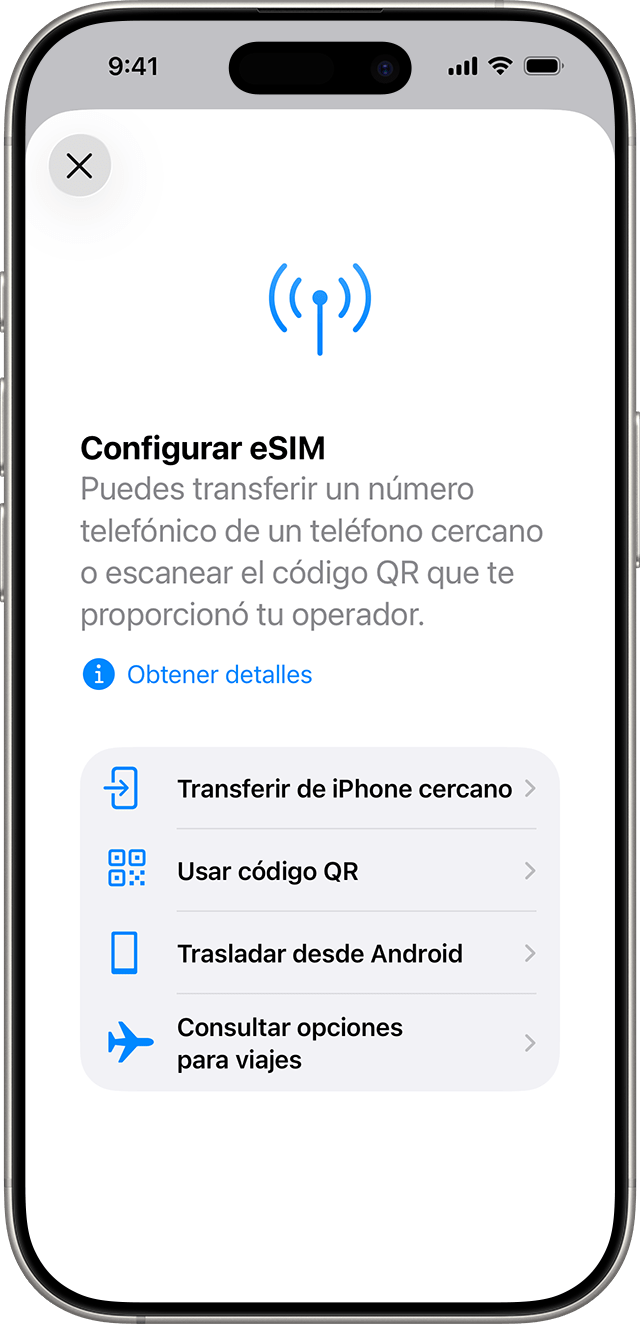
On iPhone choose “Use QR code”. - 03
Label it Travel
When iPhone asks you to label the line, choose Travel or create a Travel label. This helps you distinguish it from your regular line.
Your iPhone may then show Travel next to the carrier or provider name. That name varies by plan and destination; it does not have to say Singtel.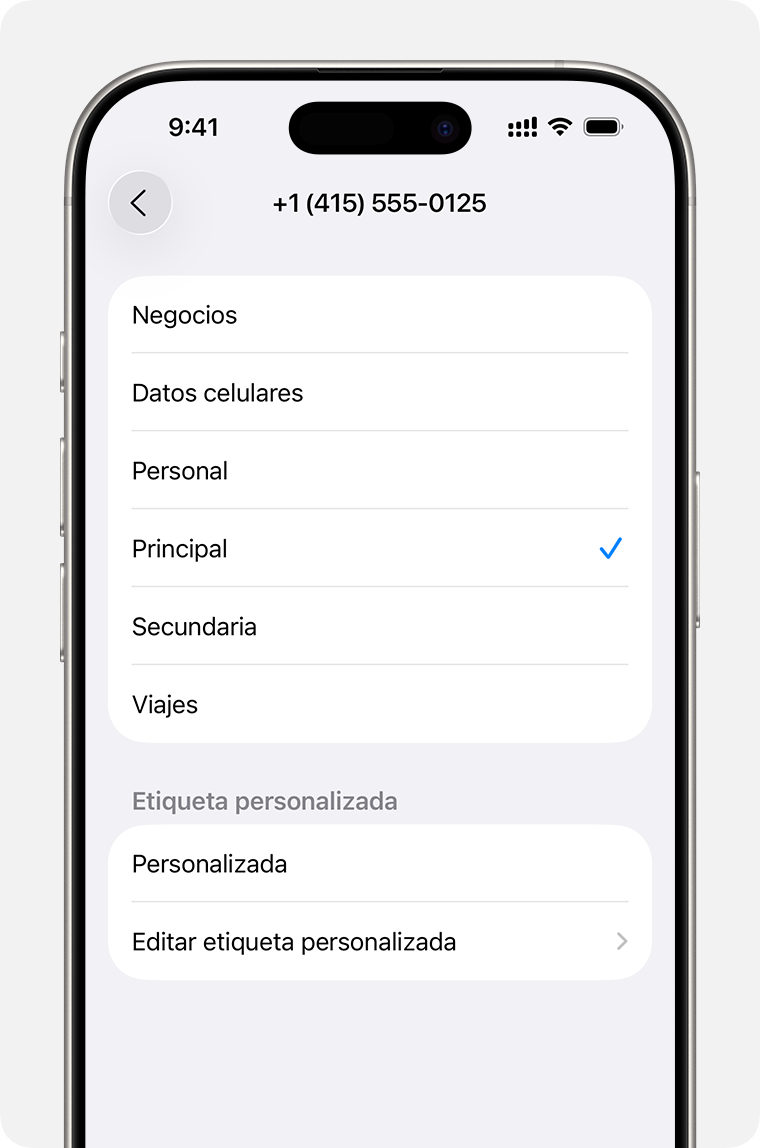
Choose “Travel” or enter “Travel” as a custom label. - 04
Use it for data when you arrive
In Settings → Cellular, tap Cellular Data and select Travel. Then open the Travel line and enable Data Roaming.
Keep your primary line for calls and messages. To avoid unexpected consumption on it, leave “Allow cellular data change” disabled.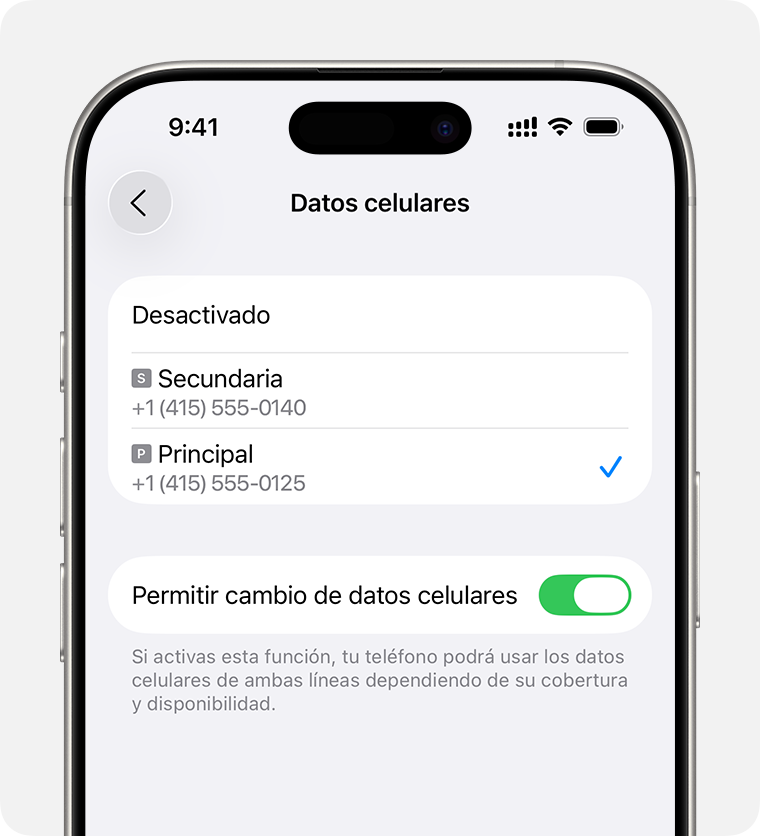
Select Travel as the line for cellular data.
Antes de probar la conexión
La configuración correcta, en un vistazo.
Si no aparecen datos de inmediato
No borres la eSIM.
Espera unos minutos, activa y desactiva el modo avión y reinicia el teléfono. Después confirma que Viaje esté activa, elegida para datos y con roaming habilitado. Si continúa sin señal, abre un ticket antes de eliminar el perfil.Las pantallas pueden cambiar según la versión del sistema. Referencias visuales y rutas verificadas en la documentación oficial.